
Command Line Hero - first day
file system:[1030-1118] ext4 > Debian zfs > redhad -these 2 use journaling as cor btrfs > sentos - copy on right (linked files)
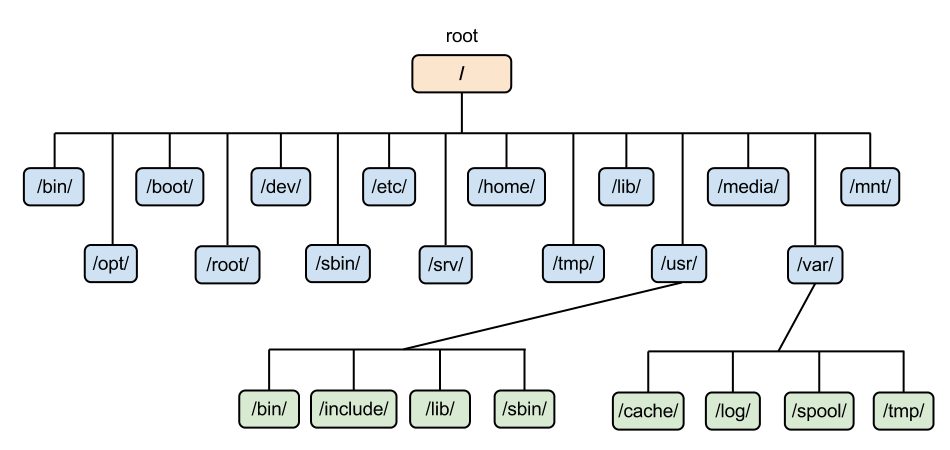
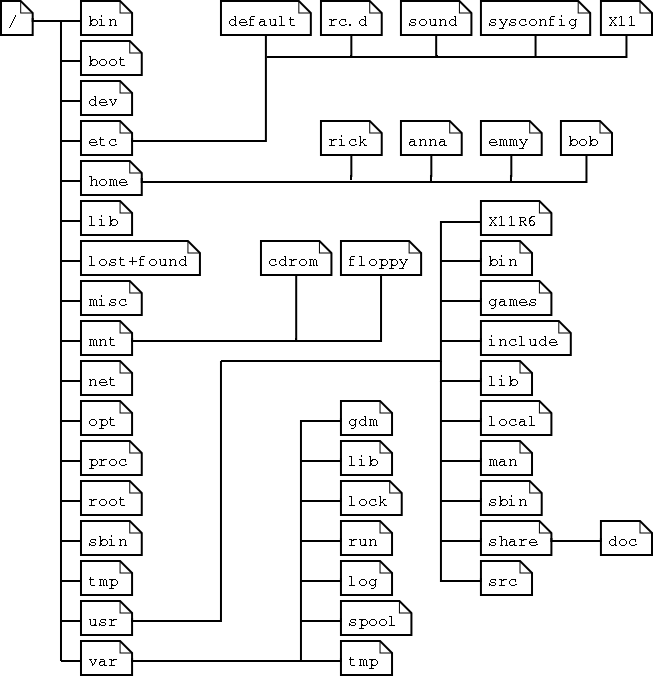
❯ ls /
bin/   dev/  home/    lib/         misc/  opt/     root/  tmp/  var/
boot/  etc/  initrd/  lost+found/  mnt/   proc/    sbin/  usr/
❯ ls -a /boot
. initrd.img-5.6.0-kali1-amd64
.. initrd.img-5.6.0-kali2-amd64
config-5.6.0-kali1-amd64 System.map-5.6.0-kali1-amd64
config-5.6.0-kali2-amd64 System.map-5.6.0-kali2-amd64
efi vmlinuz-5.6.0-kali1-amd64
grub vmlinuz-5.6.0-kali2-amd64
Subdirectories of the root directory
| Directory | Content |
|---|---|
| /bin | Common programs, shared by the system, the system administrator and the users. |
| /boot | The startup files and the kernel, vmlinuz. In some recent distributions also grub data. Grub is the GRand Unified Boot loader and is an attempt to get rid of the many different boot-loaders we know today. |
| /dev | Contains references to all the CPU peripheral hardware, which are represented as files with special properties. |
| /etc | Most important system configuration files are in /etc, this directory contains data similar to those in the Control Panel in Windows |
| /home | Home directories of the common users. |
| /initrd | (on some distributions) Information for booting. Do not remove! |
| /lib | Library files, includes files for all kinds of programs needed by the system and the users. |
| /lost+found | Every partition has a lost+found in its upper directory. Files that were saved during failures are here. |
| /misc | For miscellaneous purposes. |
| /mnt | Standard mount point for external file systems, e.g. a CD-ROM or a digital camera. |
| /net | Standard mount point for entire remote file systems |
| /opt | Typically contains extra and third party software. |
| /proc | A virtual file system containing information about system resources. More information about the meaning of the files in proc is obtained by entering the command man proc in a terminal window. The file proc.txt discusses the virtual file system in detail. |
| /root | The administrative user's home directory. Mind the difference between /, the root directory and /root, the home directory of the root user. |
| /sbin | Programs for use by the system and the system administrator. |
| /tmp | Temporary space for use by the system, cleaned upon reboot, so don't use this for saving any work! |
| /usr | Programs, libraries, documentation etc. for all user-related programs. |
| /var | Storage for all variable files and temporary files created by users, such as log files, the mail queue, the print spooler area, space for temporary storage of files downloaded from the Internet, or to keep an image of a CD before burning it. |
How can you find out which partition a directory is on?
Using the df command with a dot (.) as an option shows the partition the current directory belongs to, and informs about the amount of space used on this partition
 https://www.cyberciti.biz/faq/linux-check-disk-space-command/#:~:text=Linux%20commands%20to%20check%20disk%20space%20using%3A&text=du%20command%20%E2%80%93%20Display%20the%20amount,based%20mount%20point%2Ffile%20system
/etc/hosts
127.0.0.1 localhost loopback ::1 localhost The computer file hosts is an operating system file that maps hostnames to IP addresses. It is a plain text file.
/etc/apt/sources.list.d/
Using the directory you can easily add new repositories without the need to edit the central /etc/apt/sources.list file. I.e. you can just put a file with a unique name and the same format as /etc/apt/sources.list into this folder and it is used by apt.
 https://stackoverflow.com/questions/26020917/what-is-the-function-of-etc-apt-sources-list-d
/opt/
This directory is reserved for all the software and add-on packages that are not part of the default installation. For example, StarOffice, Kylix, Netscape Communicator and WordPerfect packages are normally found here.
To comply with the FSSTND, all third party applications should be installed in this directory. Any package to be installed here must locate its static files (ie. extra fonts, clipart, database files) must locate its static files in a separate /opt/'package' or /opt/'provider' directory tree (similar to the way in which Windows will install new software to its own directory tree C:\Windows\Progam Files\"Program Name"), where 'package' is a name that describes the software package and 'provider' is the provider's LANANA registered name.
/etc/os-release
The /etc/os-release and /usr/lib/os-release files contain operating system identification data. The basic file format of os-release is a newline-separated list of environment-like shell-compatible variable assignments.
/proc/
/proc is very special in that it is also a virtual filesystem. It's sometimes referred to as a process information pseudo-file system. It doesn't contain 'real' files but runtime system information (e.g. system memory, devices mounted, hardware configuration, etc).
- /proc/cmdline – Kernel command line information.
- /proc/console – Information about current consoles including tty.
- /proc/devices – Device drivers currently configured for the running kernel.
- /proc/dma – Info about current DMA channels.
- /proc/fb – Framebuffer devices.
- /proc/filesystems – Current filesystems supported by the kernel.
- /proc/iomem – Current system memory map for devices.
- /proc/ioports – Registered port regions for input output communication with device.
- /proc/loadavg – System load average.
- /proc/locks – Files currently locked by kernel.
- /proc/meminfo – Info about system memory (see above example).
- /proc/misc – Miscellaneous drivers registered for miscellaneous major device.
- /proc/modules – Currently loaded kernel modules.
- /proc/mounts – List of all mounts in use by system.
- /proc/partitions – Detailed info about partitions available to the system.
- /proc/pci – Information about every PCI device.
- /proc/stat – Record or various statistics kept from last reboot.
- /proc/swap – Information about swap space.
- /proc/uptime – Uptime information (in seconds).
- /proc/version – Kernel version, gcc version, and Linux distribution installed
❯ cat /proc/12/statusName: xenwatch
State: S (sleeping)
Tgid: 12
Pid: 12
PPid: 2
TracerPid: 0
Uid: 0 0 0 0
Gid: 0 0 0 0
FDSize: 64
Groups:
Threads: 1
SigQ: 1/4592
SigPnd: 0000000000000000
ShdPnd: 0000000000000000
SigBlk: 0000000000000000
SigIgn: ffffffffffffffff
SigCgt: 0000000000000000
CapInh: 0000000000000000
CapPrm: ffffffffffffffff
CapEff: ffffffffffffffff
CapBnd: ffffffffffffffff
Cpus_allowed: 1
Cpus_allowed_list: 0
Mems_allowed: 00000000,00000001
Mems_allowed_list: 0
voluntary_ctxt_switches: 84
nonvoluntary_ctxt_switches: 0
echo
echo command in linux is used to display line of text/string that are passed as an argument . This is a built in command that is mostly used in shell scripts and batch files to output status text to the screen or a file.
echo options
| Options | Description |
|---|---|
| -n | do not print the trailing newline. |
| -e | enable interpretation of backslash escapes. |
| \b | backspace |
| \\ | backslash |
| \n | new line |
| \r | carriage return |
| \t | horizontal tab |
| \v | vertical tab |
/var/
/var is a standard subdirectory of the root directory in Linux and other Unix-like operating systems that contains files to which the system writes data during the course of its operation
/var/log
In short /var/log is the location where you should find all Linux logs file. However, some applications such as httpd have a directory within /var/log/ for their own log files. You can rotate log file using logrotate software and monitor logs files using logwatch software.
ls -lht
Basically, ls command is a basic command in Linux used to List files and directories. ls command comes with so many arguments and features like you can sort files and directories by Date, by Size, able to check hidden files and directories, permissions, inode information and so on.
other ls commands
lscpu
lscpu gathers CPU architecture information from sysfs and /proc/cpuinfo. The command output can be optimized for parsing or for easy readability by humans.
lsusb
lsusb is a utility for displaying information about USB buses in the system and the devices connected to them.
lspci
lspci is a command on Unix-like operating systems that prints detailed information about all PCI buses and devices in the system. It is based on a common portable library libpci which offers access to the PCI configuration space on a variety of operating systems
LS(1)                         User Commands                         LS(1)

NAME
       ls - list directory contents

SYNOPSIS
       ls [OPTION]... [FILE]...

DESCRIPTION
       List  information  about  the  FILEs  (the  current  directory  by
       default).  Sort entries alphabetically if none  of  -cftuvSUX  nor
       --sort is specified.

       Mandatory  arguments  to  long  options  are  mandatory  for short
       options too.

       -a, --all
              do not ignore entries starting with .

       -A, --almost-all
              do not list implied . and ..

       --author
              with -l, print the author of each file

       -b, --escape
              print C-style escapes for nongraphic characters

       --block-size=SIZE
              with -l, scale sizes by  SIZE  when  printing  them;  e.g.,
              '--block-size=M'; see SIZE format below

       -B, --ignore-backups
              do not list implied entries ending with ~

       -c     with  -lt: sort by, and show, ctime (time of last modifica‐
              tion of file status information); with -l: show  ctime  and
              sort by name; otherwise: sort by ctime, newest first

       -C     list entries by columns

       --color[=WHEN]
              colorize the output; WHEN can be 'always' (default if omit‐
              ted), 'auto', or 'never'; more info below

       -d, --directory
              list directories themselves, not their contents

       -D, --dired
              generate output designed for Emacs' dired mode

       -f     do not sort, enable -aU, disable -ls --color

       -F, --classify
              append indicator (one of */=>@|) to entries

       --file-type
              likewise, except do not append '*'

       --format=WORD
              across -x, commas -m, horizontal -x, long -l, single-column
              -1, verbose -l, vertical -C

       --full-time
              like -l --time-style=full-iso

       -g     like -l, but do not list owner

       --group-directories-first
              group directories before files;

              can  be  augmented  with  a  --sort  option, but any use of
              --sort=none (-U) disables grouping

       -G, --no-group
              in a long listing, don't print group names

       -h, --human-readable
              with -l and -s, print sizes like 1K 234M 2G etc.

       --si   likewise, but use powers of 1000 not 1024

       -H, --dereference-command-line
              follow symbolic links listed on the command line

       --dereference-command-line-symlink-to-dir
              follow each command line symbolic link

              that points to a directory

       --hide=PATTERN
              do not list implied entries matching shell  PATTERN  (over‐
              ridden by -a or -A)

       --hyperlink[=WHEN]
              hyperlink  file  names;  WHEN  can  be 'always' (default if
              omitted), 'auto', or 'never'

       --indicator-style=WORD
              append indicator with  style  WORD  to  entry  names:  none
              (default),  slash  (-p),  file-type (--file-type), classify
              (-F)

       -i, --inode
              print the index number of each file

       -I, --ignore=PATTERN
              do not list implied entries matching shell PATTERN

       -k, --kibibytes
              default to 1024-byte blocks for disk usage; used only  with
              -s and per directory totals

       -l     use a long listing format

       -L, --dereference
              when  showing  file  information  for a symbolic link, show
              information for the file the link  references  rather  than
              for the link itself

       -m     fill width with a comma separated list of entries

       -n, --numeric-uid-gid
              like -l, but list numeric user and group IDs

       -N, --literal
              print entry names without quoting

       -o     like -l, but do not list group information

       -p, --indicator-style=slash
              append / indicator to directories

       -q, --hide-control-chars
              print ? instead of nongraphic characters

       --show-control-chars
              show  nongraphic characters as-is (the default, unless pro‐
              gram is 'ls' and output is a terminal)

       -Q, --quote-name
              enclose entry names in double quotes

       --quoting-style=WORD
              use quoting style WORD for entry  names:  literal,  locale,
              shell,  shell-always, shell-escape, shell-escape-always, c,
              escape (overrides QUOTING_STYLE environment variable)

       -r, --reverse
              reverse order while sorting

       -R, --recursive
              list subdirectories recursively

       -s, --size
              print the allocated size of each file, in blocks

       -S     sort by file size, largest first

       --sort=WORD
              sort by WORD instead of name: none (-U),  size  (-S),  time
              (-t), version (-v), extension (-X)

       --time=WORD
              change the default of using modification times; access time
              (-u): atime, access, use; change time (-c): ctime,  status;
              birth time: birth, creation;

              with   -l,   WORD  determines  which  time  to  show;  with
              --sort=time, sort by WORD (newest first)

       --time-style=TIME_STYLE
              time/date format with -l; see TIME_STYLE below

       -t     sort by time, newest first; see --time

       -T, --tabsize=COLS
              assume tab stops at each COLS instead of 8

       -u     with -lt: sort by, and show, access  time;  with  -l:  show
              access  time  and  sort  by name; otherwise: sort by access
              time, newest first

       -U     do not sort; list entries in directory order

       -v     natural sort of (version) numbers within text

       -w, --width=COLS
              set output width to COLS.  0 means no limit

       -x     list entries by lines instead of by columns

       -X     sort alphabetically by entry extension

       -Z, --context
              print any security context of each file

       -1     list one file per line.  Avoid '\n' with -q or -b

       --help display this help and exit

       --version
              output version information and exit

       The SIZE argument is an integer and optional unit (example: 10K is
       10*1024).  Units are K,M,G,T,P,E,Z,Y (powers of 1024) or KB,MB,...
       (powers of 1000).  Binary prefixes can be used, too: KiB=K, MiB=M,
       and so on.

       The TIME_STYLE argument can be full-iso, long-iso, iso, locale, or
       +FORMAT.  FORMAT is interpreted like in  date(1).   If  FORMAT  is
       FORMAT1<newline>FORMAT2,  then FORMAT1 applies to non-recent files
       and FORMAT2 to recent files.  TIME_STYLE  prefixed  with  'posix-'
       takes  effect  only outside the POSIX locale.  Also the TIME_STYLE
       environment variable sets the default style to use.

       Using color to distinguish file types is disabled both by  default
       and  with  --color=never.  With --color=auto, ls emits color codes
       only when standard output is connected to a terminal.  The LS_COL‐
       ORS environment variable can change the settings.  Use the dircol‐
       ors command to set it.

   Exit status:
       0      if OK,

       1      if minor problems (e.g., cannot access subdirectory),

       2      if serious trouble (e.g., cannot access command-line  argu‐
              ment).

AUTHOR
       Written by Richard M. Stallman and David MacKenzie.

REPORTING BUGS
       GNU  coreutils  online  help:  <https://www.gnu.org/software/core‐
       utils/>
       Report   any   translation   bugs   to    <https://translationpro‐
       ject.org/team/>

COPYRIGHT
       Copyright  ©  2020 Free Software Foundation, Inc.  License GPLv3+:
       GNU GPL version 3 or later <https://gnu.org/licenses/gpl.html>.
       This is free software: you are free to change and redistribute it.
       There is NO WARRANTY, to the extent permitted by law.

SEE ALSO
       Full documentation <https://www.gnu.org/software/coreutils/ls>
       or available locally via: info '(coreutils) ls invocation'

GNU coreutils 8.32              April 2020                          LS(1)
pwd
pwd stands for Print Working Directory. It prints the path of the working directory, starting from the root. pwd is shell built-in command(pwd) or an actual binary(/bin/pwd). $PWD is an environment variable which stores the path of the current directory.
touch
The touch command is a standard command used in UNIX/Linux operating system which is used to create, change and modify timestamps of a file. Basically, there are two different commands to create a file in the Linux system which is as follows: cat command: It is used to create the file with content.
for creating multiple files
You can do this with these commands:
mkdir learning_c
cd learning_c
touch bspl{0001..0003}.c
Explanation:
mkdir learning_c- This will create a folder called
learning_cin the current folder
- The current folder usually is your home folder also called
~
- You can change the current directory using the
cdcommand (i.e.cd Desktop)
- This will create a folder called
cd learning_c- Yes, you can guess it, you're entering on the newly created folder
touch bspl{0001..0003}.ctouchis a tool to create empty files and modify timestamps; we're creating empty files.
touch myfilewill create an empty file calledmyfile.
- The ugly code that follows (
bspl{0001..0003}.c) is called a brace expansion. This is a great feature of thebashshell that allows you to create long lists of arbitrary string combinations. You can learn more about this in the Bash Hackers Wiki. In this case you will be making a long list of parameters that will be passed totouch. You can also use its long equivalent:touch bspl0001.c bspl0002.c bspl0003.c
- You can change the number of files: if you want 12 files, you can run
bspl{0001..0012}.c.
- The leading zeros (
0012instead of12) make sure that the output uses zero-padded 4 digits.
difference between > & >>
ps -aux > log
ps -aux >> log
> is used to overwrite (“clobber”) a file
>> is used to append to a file.
df
df is a standard Unix command used to display the amount of available disk space for file systems on which the invoking user has appropriate read access. df is typically implemented using the statfs or statvfs system calls.
❯ hd -hUsage: df [OPTION]... [FILE]...
Show information about the file system on which each FILE resides,
or all file systems by default.
Mandatory arguments to long options are mandatory for short options too.
-a, --all include dummy file systems
-B, --block-size=SIZE use SIZE-byte blocks
-h, --human-readable print sizes in human readable format (e.g., 1K 234M 2G)
-H, --si likewise, but use powers of 1000 not 1024
-i, --inodes list inode information instead of block usage
-k like --block-size=1K
-l, --local limit listing to local file systems
--no-sync do not invoke sync before getting usage info (default)
-P, --portability use the POSIX output format
--sync invoke sync before getting usage info
-t, --type=TYPE limit listing to file systems of type TYPE
-T, --print-type print file system type
-x, --exclude-type=TYPE limit listing to file systems not of type TYPE
-v (ignored)
--help display this help and exit
--version output version information and exit
Display values are in units of the first available SIZE from --block-size,
and the DF_BLOCK_SIZE, BLOCK_SIZE and BLOCKSIZE environment variables.
Otherwise, units default to 1024 bytes (or 512 if POSIXLY_CORRECT is set).
The SIZE argument is an integer and optional unit (example: 10K is 10*1024).
Units are K,M,G,T,P,E,Z,Y (powers of 1024) or KB,MB,... (powers of 1000).
FIELD_LIST is a comma-separated list of columns to be included. Valid
field names are: 'source', 'fstype', 'itotal', 'iused', 'iavail', 'ipcent',
'size', 'used', 'avail', 'pcent', 'file' and 'target' (see info page).
GNU coreutils online help: <https://www.gnu.org/software/coreutils/>
Full documentation at: <https://www.gnu.org/software/coreutils/df>
or available locally via: info '(coreutils) df invocation'
du
du is a standard Unix program used to estimate file space usage—space used under a particular directory or files on a file system.
SYNOPSIS du [OPTION]... [FILE]... du [OPTION]... --files0-from=F
DESCRIPTION Summarize disk usage of the set of FILEs, recursively for directories.
   Mandatory  arguments  to  long  options are mandatory for short options
   too.

   -0, --null
          end each output line with NUL, not newline

   -a, --all
          write counts for all files, not just directories

   --apparent-size
          print apparent sizes, rather than disk usage; although  the  ap‐
          parent size is usually smaller, it may be larger due to holes in
          ('sparse') files, internal fragmentation, indirect  blocks,  and
          the like

   -B, --block-size=SIZE
          scale  sizes  by  SIZE  before printing them; e.g., '-BM' prints
          sizes in units of 1,048,576 bytes; see SIZE format below

   -b, --bytes
          equivalent to '--apparent-size --block-size=1'

   -c, --total
          produce a grand total

   -D, --dereference-args
          dereference only symlinks that are listed on the command line

   -d, --max-depth=N
          print the total for a directory (or file, with --all) only if it
          is   N   or  fewer  levels  below  the  command  line  argument;
          --max-depth=0 is the same as --summarize

   --files0-from=F
          summarize disk usage of the NUL-terminated file names  specified
          in file F; if F is -, then read names from standard input

   -H     equivalent to --dereference-args (-D)

   -h, --human-readable
          print sizes in human readable format (e.g., 1K 234M 2G)

   --inodes
          list inode usage information instead of block usage

   -k     like --block-size=1K

   -L, --dereference
          dereference all symbolic links

   -l, --count-links
          count sizes many times if hard linked

   -m     like --block-size=1M

   -P, --no-dereference
          don't follow any symbolic links (this is the default)

   -S, --separate-dirs
          for directories do not include size of subdirectories

   --si   like -h, but use powers of 1000 not 1024

   -s, --summarize
          display only a total for each argument

   -t, --threshold=SIZE
          exclude  entries  smaller  than  SIZE  if  positive,  or entries
          greater than SIZE if negative

   --time show time of the last modification of any file in the directory,
          or any of its subdirectories

   --time=WORD
          show  time  as WORD instead of modification time: atime, access,
          use, ctime or status

   --time-style=STYLE
          show times using STYLE, which can be: full-iso,  long-iso,  iso,
          or +FORMAT; FORMAT is interpreted like in 'date'

   -X, --exclude-from=FILE
          exclude files that match any pattern in FILE

   --exclude=PATTERN
          exclude files that match PATTERN

   -x, --one-file-system
          skip directories on different file systems

   --help display this help and exit

   --version
          output version information and exit

   Display   values  are  in  units  of  the  first  available  SIZE  from
   --block-size, and the DU_BLOCK_SIZE, BLOCK_SIZE and BLOCKSIZE  environ‐
   ment  variables.   Otherwise,  units  default  to 1024 bytes (or 512 if
   POSIXLY_CORRECT is set).

   The SIZE argument is an integer and  optional  unit  (example:  10K  is
   10*1024).   Units  are  K,M,G,T,P,E,Z,Y  (powers  of 1024) or KB,MB,...
   (powers of 1000).
sort
In computing, sort is a standard command line program of Unix and Unix-like operating systems, that prints the lines of its input or concatenation of all files listed in its argument list in sorted order. Sorting is done based on one or more sort keys extracted from each line of input
SYNOPSIS sort [OPTION]... [FILE]... sort [OPTION]... --files0-from=F
DESCRIPTION Write sorted concatenation of all FILE(s) to standard output.
   With no FILE, or when FILE is -, read standard input.

   Mandatory  arguments  to  long  options are mandatory for short options
   too.  Ordering options:

   -b, --ignore-leading-blanks
          ignore leading blanks

   -d, --dictionary-order
          consider only blanks and alphanumeric characters

   -f, --ignore-case
          fold lower case to upper case characters

   -g, --general-numeric-sort
          compare according to general numerical value

   -i, --ignore-nonprinting
          consider only printable characters

   -M, --month-sort
          compare (unknown) < 'JAN' < ... < 'DEC'

   -h, --human-numeric-sort
          compare human readable numbers (e.g., 2K 1G)

   -n, --numeric-sort
          compare according to string numerical value

   -R, --random-sort
          shuffle, but group identical keys.  See shuf(1)

   --random-source=FILE
          get random bytes from FILE

   -r, --reverse
          reverse the result of comparisons

   --sort=WORD
          sort according to WORD: general-numeric  -g,  human-numeric  -h,
          month -M, numeric -n, random -R, version -V

   -V, --version-sort
          natural sort of (version) numbers within text

   Other options:

   --batch-size=NMERGE
          merge at most NMERGE inputs at once; for more use temp files

   -c, --check, --check=diagnose-first
          check for sorted input; do not sort

   -C, --check=quiet, --check=silent
          like -c, but do not report first bad line

   --compress-program=PROG
          compress temporaries with PROG; decompress them with PROG -d

   --debug
          annotate the part of the line used to sort, and warn about ques‐
          tionable usage to stderr

   --files0-from=F
          read input from the files specified by NUL-terminated  names  in
          file F; If F is - then read names from standard input

   -k, --key=KEYDEF
          sort via a key; KEYDEF gives location and type

   -m, --merge
          merge already sorted files; do not sort

   -o, --output=FILE
          write result to FILE instead of standard output

   -s, --stable
          stabilize sort by disabling last-resort comparison

   -S, --buffer-size=SIZE
          use SIZE for main memory buffer

   -t, --field-separator=SEP
          use SEP instead of non-blank to blank transition

   -T, --temporary-directory=DIR
          use  DIR  for temporaries, not $TMPDIR or /tmp; multiple options
          specify multiple directories

   --parallel=N
          change the number of sorts run concurrently to N

   -u, --unique
          with -c, check for strict ordering; without -c, output only  the
          first of an equal run

   -z, --zero-terminated
          line delimiter is NUL, not newline

   --help display this help and exit

   --version
          output version information and exit

   KEYDEF  is F[.C][OPTS][,F[.C][OPTS]] for start and stop position, where
   F is a field number and C a character position in the field;  both  are
   origin 1, and the stop position defaults to the line's end.  If neither
   -t nor -b is in effect, characters in a field are counted from the  be‐
   ginning of the preceding whitespace.  OPTS is one or more single-letter
   ordering options [bdfgiMhnRrV], which override global ordering  options
   for that key.  If no key is given, use the entire line as the key.  Use
   --debug to diagnose incorrect key usage.

   SIZE may be followed by the following multiplicative suffixes: % 1%  of
   memory, b 1, K 1024 (default), and so on for M, G, T, P, E, Z, Y.

   ***  WARNING  ***  The locale specified by the environment affects sort
   order.  Set LC_ALL=C to get the traditional sort order that uses native
   byte values.
fdisk
❯ sudo fdisk --helpOptions:
-b, --sector-size <size> physical and logical sector size
-B, --protect-boot don't erase bootbits when creating a new label
-c, --compatibility[=<mode>] mode is 'dos' or 'nondos' (default)
-L, --color[=<when>] colorize output (auto, always or never)
colors are enabled by default
-l, --list display partitions and exit
-o, --output <list> output columns
-t, --type <type> recognize specified partition table type only
-u, --units[=<unit>] display units: 'cylinders' or 'sectors' (default)
-s, --getsz display device size in 512-byte sectors [DEPRECATED]
--bytes print SIZE in bytes rather than in human readable format
-w, --wipe <mode> wipe signatures (auto, always or never)
-W, --wipe-partitions <mode> wipe signatures from new partitions (auto, always or never)
-C, --cylinders <number> specify the number of cylinders
-H, --heads <number> specify the number of heads
-S, --sectors <number> specify the number of sectors per track
-h, --help display this help
-V, --version display version
Available output columns:
gpt: Device Start End Sectors Size Type Type-UUID Attrs Name UUID
dos: Device Start End Sectors Cylinders Size Type Id Attrs Boot End-C/H/S
Start-C/H/S
bsd: Slice Start End Sectors Cylinders Size Type Bsize Cpg Fsize
sgi: Device Start End Sectors Cylinders Size Type Id Attrs
sun: Device Start End Sectors Cylinders Size Type Id Flags
sudo fdisk -l
display partitions and exit
If you would like to view all commands which are available for fdisk. Simply use the following command by mentioning the hard disk name such as /dev/sda as shown below. The following command will give you output similar to below.
❯ fdisk /dev/sda

WARNING: DOS-compatible mode is deprecated. It's strongly recommended to
         switch off the mode (command 'c') and change display units to
         sectors (command 'u').

Command (m for help):
Command (m for help): p
Disk /dev/sda: 931.53 GiB, 1000204886016 bytes, 1953525168 sectors
Disk model: WDC WD10SPZX-24Z
Units: sectors of 1 * 512 = 512 bytes
Sector size (logical/physical): 512 bytes / 4096 bytes
I/O size (minimum/optimal): 4096 bytes / 4096 bytes
Disklabel type: gpt
Disk identifier: 5AA586DE-EF00-4C96-B2E4-E7140F418855
Dece Start End Sectors Size Type
/dev/sda1 2048 1050623 1048576 512M EFI System
/dev/sda2 1050624 1936932863 1935882240 923.1G Linux filesystem
/dev/sda3 1936932864 1953523711 16590848 7.9G Linux swap
free
tell you how much free space you have in your system
useradd
OPTIONS
       --conf FILE
              Use FILE instead of /etc/adduser.conf.

       --disabled-login
              Do  not  run passwd to set the password.  The user won't be able
              to use her account until the password is set.

       --disabled-password
              Like --disabled-login, but logins are still possible (for  exam‐
              ple using SSH RSA keys) but not using password authentication.

       --force-badname
              By default, user and group names are checked against the config‐
              urable regular expression NAME_REGEX specified in the configura‐
              tion file. This option forces adduser and addgroup to apply only
              a weak check for validity of the name.  NAME_REGEX is  described
              in adduser.conf(5).

       --gecos GECOS
              Set  the  gecos field for the new entry generated.  adduser will
              not ask for finger information if this option is given.

       --gid ID
              When creating a group, this option forces the new groupid to  be
              the  given  number.   When creating a user, this option will put
              the user in that group.

       --group
              When combined with --system, a group with the same name  and  ID
              as the system user is created.  If not combined with --system, a
              group with the given name is created.  This is the  default  ac‐
              tion if the program is invoked as addgroup.

       --help Display brief instructions.

       --home DIR
              Use  DIR  as  the user's home directory, rather than the default
              specified by the configuration file.  If the directory does  not
              exist, it is created and skeleton files are copied.

       --shell SHELL
              Use  SHELL  as  the  user's login shell, rather than the default
              specified by the configuration file.

       --ingroup GROUP
              Add the new user to GROUP instead of a usergroup or the  default
              group  defined by USERS_GID in the configuration file.  This af‐
              fects the users primary group.  To add  additional  groups,  see
              the add_extra_groups option.

       --no-create-home
              Do not create the home directory, even if it doesn't exist.

       --quiet
              Suppress informational messages, only show warnings and errors.

       --debug
              Be  verbose, most useful if you want to nail down a problem with
              adduser.

       --system
              Create a system user or group.

       --uid ID
              Force the new userid to be the given number.  adduser will  fail
              if the userid is already taken.

       --firstuid ID
              Override  the first uid in the range that the uid is chosen from
              (overrides FIRST_UID specified in the configuration file).

       --lastuid ID
              Override the last uid in the range that the uid is chosen from (
              LAST_UID )

       --add_extra_groups
              Add new user to extra groups defined in the configuration file.

       --version
              Display version and copyright information.
sudo !!
will run last command as admin
/etc/passwd
this file save all users and their info
passwd
this is used to change and modify password for users
usermod
In Unix/Linux distributions, the command ‘usermod‘ is used to modify or change any attributes of a already created user account via command line. The command ‘usermod‘ is similar to that ‘useradd‘ or ‘adduser‘ but the login granted to an existing user.
options
- c = We can add comment field for the useraccount.
- d = To modify the directory for any existing user account.
- e = Using this option we can make the account expiry in specific period.
- g = Change the primary group for a User.
- G = To add a supplementary groups.
- a = To add anyone of the group to a secondary group.
- l = To change the login name from tecmint to tecmint_admin.
- L = To lock the user account. This will lock the password so we can’t use the account.
- m = moving the contents of the home directory from existing home dir to new dir.
- p = To Use un-encrypted password for the new password. (NOT Secured).
- s = Create a Specified shell for new accounts.
- u = Used to Assigned UID for the user account between 0 to 999.
- U = To unlock the user accounts. This will remove the password lock and allow us to use the user account.
- if you forgot to set password:
sudo passwd [usrname]
delete user
❯ userdel userName❯ userdel [options] userName❯ userdel -r userName
cat /etc/group
The /etc/group is a text file which defines the groups to which users belong under Linux and UNIX operating system. Under Unix / Linux multiple users can be categorized into groups
chown
The chown command allows you to change the user and/or group ownership of a given file, directory, or symbolic link.
chown [OPTIONS] USER[:GROUP] FILE(s)
USER- If only the user is specified, the specified user will become the owner of the given files, the group ownership is not changed.
USER:- When the username is followed by a colon:, and the group name is not given, the user will become the owner of the files, and the files group ownership is changed to user’s login group.
USER:GROUP- If both the user and the group are specified (with no space betwen them), the user ownership of the files is changed to the given user and the group ownership is changed to the given group.
:GROUP- If the User is omitted and the group is prefixed with a colon:, only the group ownership of the files is changed to the given group.
:If only a colon:is given, without specifying the user and the group, no change is made.
chown :root file1
-R :To make the chown command recursively operate on files and directories, use the -R command-line option. For those who aren't aware, recursive means the operation will be performed for all files in the given directory, as well as for files and directories within all sub-directories.
By default, on success, chown doesn’t produce any output and returns zero.
chgrp
chgrp [OPTION]… GROUP FILE…
chgrp [OPTION]… –reference=RFILE FILE…GROUP, name of the new group, or the group ID (GID). Numeric GID must be prefixed with the+symbol.
FILE.., name of one or more files.
example :
❯ chgrp www-data file1 file2 dir1❯ sudo chgrp -h root file1symlink
find
❯ find options starting/path expressionoptions
| Command | Description |
|---|---|
| find . -name testfile.txt | Find a file called testfile.txt in current and sub-directories. |
| find /home -name *.jpg | Find all .jpg files in the /home and sub-directories. |
| find . -type f -empty | Find an empty file within the current directory. |
| find /home -user exampleuser -mtime -7 -iname ".db" | Find all .db files (ignoring text case) modified in the last 7 days by a user named exampleuser. |
examples :
❯ find /home/username/ -name "*.err"❯ find -O3 -L /var/www/ -name "*.html"❯ find /home/exampleuser/ -name "*conf" -mtime -3❯ find . -type f -exec grep "example" '{}' \; -print❯ find /etc/ ❯ sudo find ~/college/fall-1399/ -size +50M -exec ls -l {} \;
-rw-r--r-- 1 danial danial 61189139 Aug 31 12:54 '/home/danial/college/fall-1399/computer architecture/1/Record_2020_08_31_12_31_54_280.mp4'
-rw-r--r-- 1 danial danial 416724792 Sep 11 16:35 '/home/danial/college/fall-1399/logic lab/Proteus.Pro.8.10.SP3.Build.29560/Proteus 8.10 SP3 Pro.exe'
-rw-r--r-- 1 danial danial 81074108 Apr 8 23:10 '/home/danial/college/fall-1399/logic lab/ایجاد پروژه در پروتئوس1/ایجاد پروژه در پروتئوس1.mp4'
-rw-r--r-- 1 danial danial 430195328 Sep 21 08:53 '/home/danial/college/fall-1399/logic lab/ProteusPro810SP3Build29560.rar'
cp -R command is used for recursive copy of all files and directories in source directory tree.
ln
The ln command is a standard Unix command utility used to create a hard link or a symbolic link (symlink) to an existing file or directory. The use of a hard link allows multiple filenames to be associated with the same file since a hard link points to the inode of a given file, the data of which is stored on disk.
locate
❯ locate "*.html" -n 6

/home/tecmint/.config/google-chrome/Default/Extensions/aapocclcgogkmnckokdopfmhonfmgoek/0.9_0/main.html
/home/tecmint/.config/google-chrome/Default/Extensions/aohghmighlieiainnegkcijnfilokake/0.9_0/main.html
/home/tecmint/.config/google-chrome/Default/Extensions/felcaaldnbdncclmgdcncolpebgiejap/1.1_0/main.html
/home/tecmint/.config/google-chrome/Default/Extensions/kbfnbcaeplbcioakkpcpgfkobkghlhen/14.752.848_0/forge.html
/home/tecmint/.config/google-chrome/Default/Extensions/kbfnbcaeplbcioakkpcpgfkobkghlhen/14.752.848_0/src/popup.html
/home/tecmint/.config/google-chrome/Default/Extensions/nlipoenfbbikpbjkfpfillcgkoblgpmj/3.9.16_0/additional-feature.html
❯ locate -c [tecmint]*
1550❯ locate -i -e *text.txt*
/home/tecmint/text.txt
whereis
The whereis command in Linux is used to locate the binary, source, and manual page files for a command. This command searches for files in a restricted set of locations (binary file directories, man page directories, and library directories).
linux files permissions
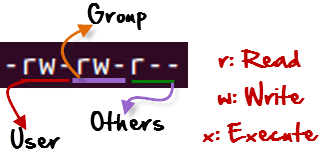
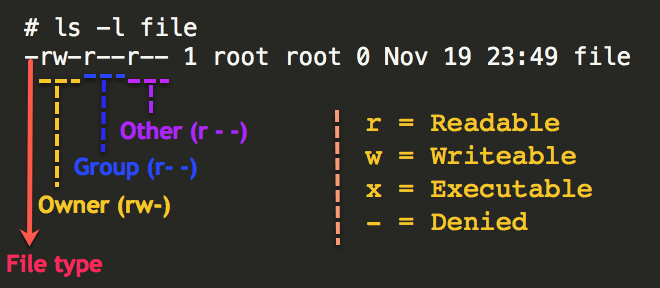
 https://www.guru99.com/file-permissions.html#:~:text=Linux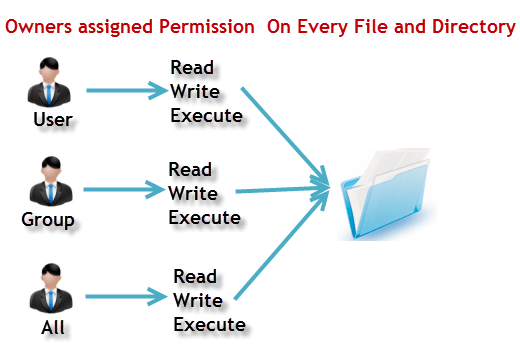
- 4 stands for "read",
- 2 stands for "write",
- 1 stands for "execute", and
- 0 stands for "no permission."
chmod
- -c, -changesLike -verbose, but gives verbose output only when a change is actually made.
- -f, -silent, -quietQuiet mode; suppress most error messages.
- -v, -verboseVerbose mode; output a diagnostic message for every file processed.
- -no-preserve-rootDo not treat '/' (the root directory) in any special way, which is the default setting.
- -preserve-rootDo not operate recursively on '/'.
- -reference=RFILESet permissions to match those of file RFILE, ignoring any specified MODE.
- -R, -recursiveChange files and directories recursively.
- -helpDisplay a help message and exit.
- -versionOutput version information and exit.
Options
| Options | summery |
|---|---|
| -f, --silent, --quiet | Quiet mode; suppress most error messages. |
| -v, --verbose | Verbose mode; output a diagnostic message for every file processed. |
| --no-preserve-root | Do not treat '/' (the root directory) in any special way, which is the default setting. |
| --preserve-root | Do not operate recursively on '/'. |
| --reference=RFILE | Set permissions to match those of file RFILE, ignoring any specified MODE. |
| -R, --recursive | Change files and directories recursively. |
| --help | Display a help message and exit. |
| --version | Output version information and exit. |
| c, --changes | Like --verbose, but gives verbose output only when a change is actually made. |
hard link & soft link
- Hard links. You can think a hard link as an additional name for an existing file. Hard links are associating two or more file names with the same inode . You can create one or more hard links for a single file. Hard links cannot be created for directories and files on a different filesystem or partition.
- Soft links. A soft link is something like a shortcut in Windows. It is an indirect pointer to a file or directory. Unlike a hard link, a symbolic link can point to a file or a directory on a different filesystem or partition.
A symbolic or soft link is an actual link to the original file, whereas a hard link is a mirror copy of the original file. If you delete the original file, the soft link has no value, because it points to a non-existent file.
soft link
❯ ln -s {source-filename} {symbolic-filename}❯ ln -s file1 link1
-rw-r--r-- 1 veryv wheel 0 Mar 7 22:01 file1
lrwxr-xr-x 1 veryv wheel 5 Mar 7 22:01 link1 -> file1
alias
What is a shell alias?
A shell alias is a shortcut to reference a command. It can be used to avoid typing long commands or as a means to correct incorrect input. For common patterns it can reduce keystrokes and improve efficiency. A simple example is setting default options on commands to avoid having to type them each time a command is run.
Why create a shell alias?
For the following example suppose that a user prefers to confirm deleting a file before using the rm command. The rm command supports this with the i option.
rm -i file.txt
remove file.txt? y
To avoid forgetting to use the i option each time an alias can be created so that each time rm is run it will use the i option and prompt the user to confirm.
How to set an shell alias
Building on the previous example an alias can be directly set in the shell as follows.
alias rm='rm -i'
Now when the rm command is run it will use the alias and the i option.
rm file.txt
remove file.txt?
Note that setting an alias in this way only works for the life of a shell session. When the shell is closed the alias will be lost. To make an alias persist across shell sessions and reboots a configuration file for the shell should be used. For bash this is the .bashrc file. If you are using zsh it is the .zshrc file.
The .bashrc file
A .bashrc file can be used to set configuration for a shell. In this example a local user’s .bashrc file will be used. If you are running the zsh shell use a file called .zshrc.
Open the ~/.bashrc file in your preferred text editor. If it does not exist create it.
touch ~/.bashrc
How to add a shell alias to .bashrc
Within the .bashrc files aliases can now be added. The format is simple. First declare the command you wish to alias, then specify the command to run instead.
alias rm='rm -i'
For this example we replace rm with rm -i so that the user is prompted before deleting the file.
Once the .bashrc file is saved the shell needs to be reloaded for the alias to take effect.
source ~/.bashrc
The alias should now be available and typing rm will be interpreted as rm -i
export
export is bash shell BUILTINS commands, which means it is part of the shell. It marks an environment variables to be exported to child-processes.
export [-fn] [name[=value] ...] or export -poptions
| Tag | Description |
|---|---|
| -p | List of all names that are exported in the current shell |
| -n | Remove names from export list |
| -f | Names are exported as functions |
echo
$$ is the PID of the current process.
$? is the return code of the last executed command.
$# is the number of arguments in $*
$* is the list of arguments passed to the current process

echo $$
echo $?
$? Expands to the exit status of the most recently executed foreground pipeline. echo $? will return the exit status of last command. You got 127 that is the exit status of last executed command exited with some error (most probably)
- 0: no errors
- 1: general errors
- 2: misuse of shell builtins (pretty rare)
- 126: cannot invoke requested command (permission denied)
- 127: command not found error
- 128: invalid argument to “exit”
- 128+n: fatal error signal “n” (for example, kill -9 = 137).
- 130: script terminated by Ctrl-C
tail
print last 10 lines of file
head
print first 10 lines of file
less
On Linux systems, less is a command that displays file contents or command output one page at a time in your terminal.
options
search - n next N previus
grep
example :
sudo grep -Rw . -e '1'
zgrep
The zgrep command is used to search out expressions from a given a file even if it is compressed. All the options that applies to the grep command also applies to the zgrep command.
I know $0 is the entire file's contents (at least I think that is what it is!), but what exactly is: $0!~This was a snippet from a larger lineCode:
awk '$0!~/^$/ {print $0}'This deletes blank lines, but I want to know specifically the $0!~ part... I am guessing /^$/ is regex for blank line... and {print $0} means to print the whole thing to stdout.. Right?
It prints lines which doesn't match with regular exp ^$ i.e. blank.So prints all non-blank lines only (i.e. delete blank lines)
NF      The number of fields in the current input record.
NR      The total number of input records seen so far.
OFMT    The output format for numbers, "%.6g", by default.
OFS     The output field separator, a space by default.
ORS     The output record separator, by default a newline.
PREC    The working precision of arbitrary precision floating-point numbers, 53 by defaul
Executing awk on each file found with find, then redirecting the result to a new filename
The simplest method is to use awk's output redirection. Awk output redirection is very easy to use in simple cases: the file is opened the first time a redirection is used, and subsequent redirections to the same file name use the existing file descriptor.
If you wanted to add a suffix to the file name, it would be as easy as
find -type f -iname "*.txt" -exec awk '{print $1, $2 >(FILENAME "-new")}' {} +But you can make a more complex transformation on the file name (here recalculated only at the first line of each input file):
find -type f -iname "*.txt" -exec awk '
    FNR==1 {out=FILENAME; sub(/\.[^.]*$/, "-new&", out) || out = out "-new"}
    {print $1, $2 >out}
' {} +
example :
~/part-class/loguru-master via 🐍 v3.7.7
❯ find -name '*.py' -exec awk '{if ($1 ~ /import/) print $2}' {} \; | sort |uniq https://www.tecmint.com/use-linux-awk-command-to-filter-text-string-in-files/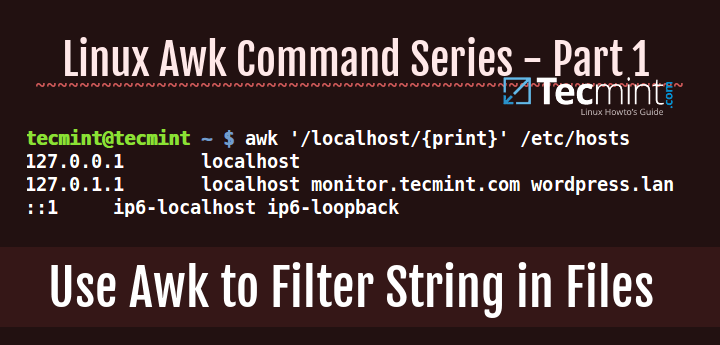
 https://unix.stackexchange.com/questions/224847/executing-awk-on-each-file-found-with-find-then-redirecting-the-result-to-a-new
sed
sed is a stream editor. A stream editor is used to perform basic text transformations on an input stream (a file, or input from a pipeline).
example :
❯ sed 's/unix/linux/' geekfile.txtlinux is great os. unix is opensource. unix is free os.
learn operating system.
linux linux which one you choose.
linux is easy to learn.unix is a multiuser os.Learn unix .unix is a powerful.
❯ sed 's/unix/linux/2' geekfile.txtunix is great os. linux is opensource. unix is free os.
learn operating system.
unix linux which one you choose.
unix is easy to learn.linux is a multiuser os.Learn unix .unix is a powerful.
❯ sed 's/unix/linux/g' geekfile.txtlinux is great os. linux is opensource. linux is free os.
learn operating system.
linux linux which one you choose.
linux is easy to learn.linux is a multiuser os.Learn linux .linux is a powerful.
❯ sed 's/unix/linux/3g' geekfile.txtunix is great os. unix is opensource. linux is free os.
learn operating system.
unix linux which one you choose.
unix is easy to learn.unix is a multiuser os.Learn linux .linux is a powerful.
❯ echo "Welcome To The Geek Stuff" | sed 's/\(\b[A-Z]\)/\(\1\)/g'(W)elcome (T)o (T)he (G)eek (S)tuff
❯ sed '3 s/unix/linux/' geekfile.txtunix is great os. unix is opensource. unix is free os.
learn operating system.
linux linux which one you choose.
unix is easy to learn.unix is a multiuser os.Learn unix .unix is a powerful.
sed -n 's/unix/linux/p' geekfile.txtlinux is great os. unix is opensource. unix is free os.
linux linux which one you choose.
linux is easy to learn.unix is a multiuser os.Learn unix .unix is a powerful.
cut
In computing, cut is a command line utility on Unix and Unix-like operating systems which is used to extract sections from each line of input — usually from a file. It is currently part of the GNU coreutils package and the BSD Base System
Options
f(-fields=LIST) - Select by specifying a field, a set of fields, or a range of fields. This is the most commonly used option.
b(-bytes=LIST) - Select by specifying a byte, a set of bytes, or a range of bytes.
c(-characters=LIST) - Select by specifying a character, a set of characters, or a range of characters.
d(-delimiter) - Specify a delimiter that will be used instead of the default “TAB” delimiter.
-complement- Complement the selection. When using this optioncutdisplays all bytes, characters, or fields except the selected.
s(-only-delimited) - By defaultcutprints the lines that contain no delimiter character. When this option is used,cutdoesn’t print lines not containing delimiters.
-output-delimiter- The default behavior ofcutis to use the input delimiter as the output delimiter. This option allows you to specify a different output delimiter string.
Specifying LIST
Nthe Nth field, byte or character, starting from 1.
N-from the Nth field, byte or character, to the end of the line.
N-Mfrom the Nth to the Mth field, byte, or character.
Mfrom the first to the Mth field, byte, or character.
final examples :
My code
find files that include import
grep -Rw . -Le 'import'
or
grep -Rw 'import' | sort
count them
sudo find . -type f -exec  grep 'import' -nw {} \; | wc -l
or
grep -Rw . -Le 'import' | wc -l
count how many times the word 'import' repeated in each file
grep -Rwc 'import' | sortfind 'loguru' in all files and print lines number
sudo find . -type f -exec grep 'loguru' -nw {} \; | wc -lget names of all libraries that is used
find . -name '*.py'|grep -Rr 'import'|sort|cut -d ':' -f 2 | cut -d ' ' -f 2 |uniq
find  -name '*.py'  -exec  awk '{if ($1 ~ /import/) print $2}' {} \; | sort |uniq
Sadegh code
lines with loguru :
grep -r "loguru" .modules:
grep -r "import" . | cut -d':' -f2,2 | cut -d' ' -f2,2 | sort | uniqfile names:
grep -r "import" . | grep import | cut -d'/' -f3 | cut -d ':' -f1 |sort | uniqtotal occurence of import:
grep -r "import" . | grep import | grep -o 'import' | wc -limport count in each file:
grep -Rwc "import" . | sort| cut -d '/' -f3